
To add a Philips Hue device to AirTouch Home, make sure the Philips Hue Bridge is online and connected to the same network as your AirTouch Home console.
Steps to Add Philips Hue
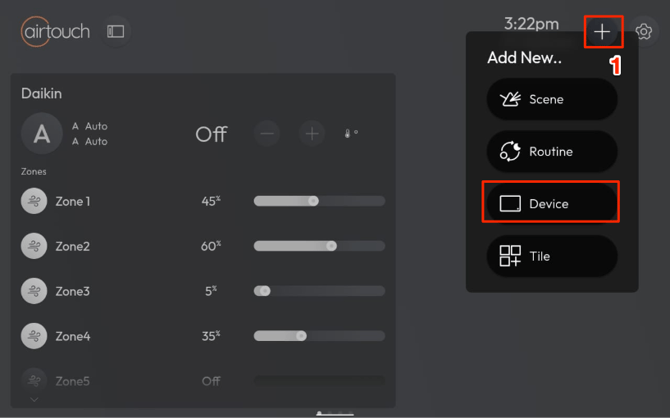
- On the AirTouch Home console or mobile app, tap the + (Add icon) → select Device.
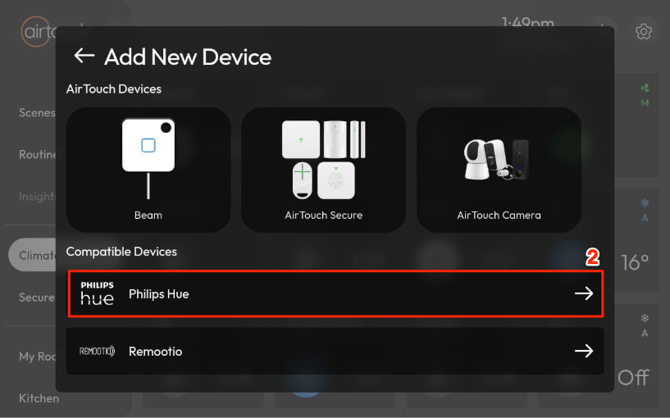
- Choose Philips Hue from the list.
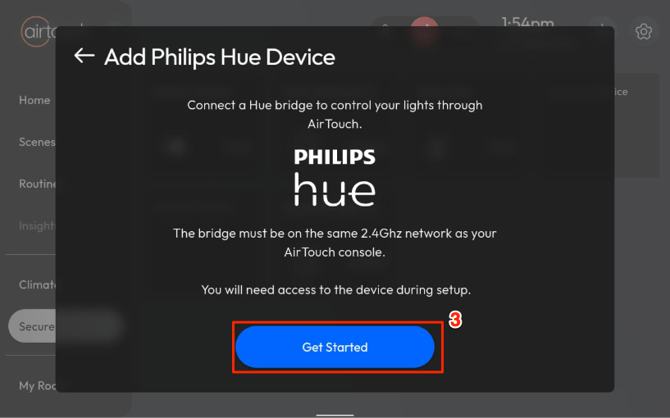
- Tap Get Started.
- AirTouch Home will begin searching for your Philips Hue Bridge.
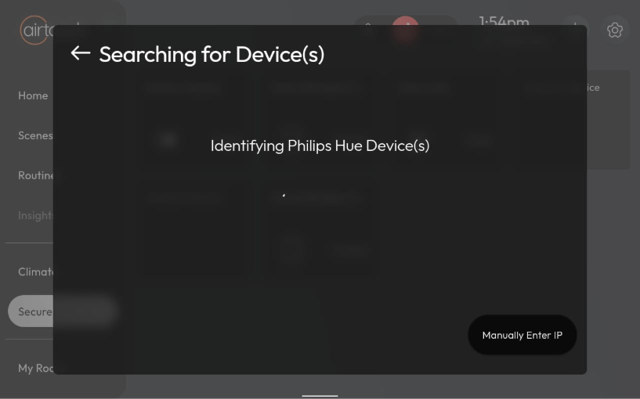
- Once detected, select the Hue Bridge to add devices to AirTouch Home.

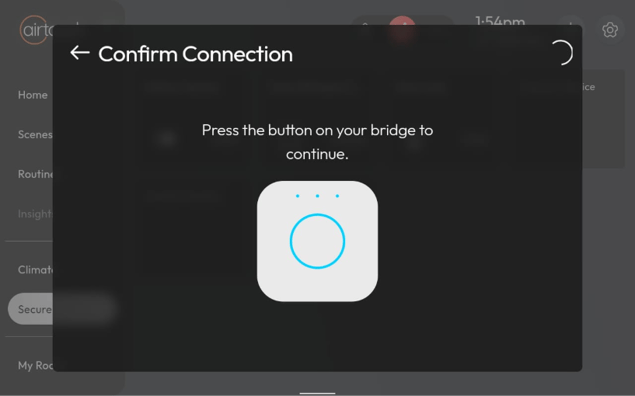
- Press the button on your Hue Bridge to authorize the connection.
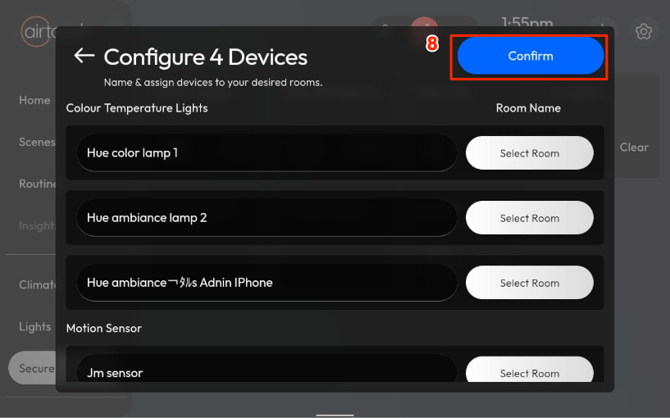
- Configure each device:
- Rename it (optional).
- Assign it to a room (optional).
- Tap Confirm to finish setup.
Your Philips Hue devices are now connected and ready to use with AirTouch Home.